FAQ Overview

Wopeton Music

Go to category

How to use the music vase

Wopeton Ultimate Gorean Music Vase

Instructions

Click the object for the main menu. A dialog will pop-up with a buttons display, as follows:
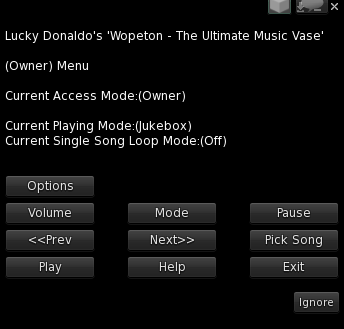
  1. Options button:
    This will take you to the owner only settings, when you click this button another dialog will pop-up with the following buttons display:
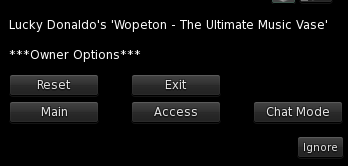
 

Reset button:  
This will send a reset command to the entire script engine and all default settings will be reset.

Exit button:
By default, the dialog  has an  8 minute timer at which time,  the dialog times out, and you will need to click the object again for a working menu. If you click the Exit button, the timer shuts off on the spot.

Main button:
This will take you back to the main menu system.

Access button:
This will let you set access modes, Owner, Public, Group. If you want others to work your object can just set it to  Public or Group. Do not deed the object if you set it to your group. It will mess up all the scripts if you do, and there is no need to deed this object to work with group access.

Chat Mode button:
This  button will let you pick what type of chat command to use when not set to owner only.  When you click this button another dialog will pop-up with the following buttons display:

Exit button:
By default, the dialog  has an  8 minute timer at which time,  the dialog times out, and you will need to click the object again for a working menu. If you click the Exit button, the timer shuts off on the spot.

Say button:
This will switch it from Whisper to Say, this button will change base on what chat mode it is set on.  When you click the Say button it will then switch to Whisper button. If you live very close to ppl it is best just keep it on default whisper.

Main button:
This will take you back to the main menu system.

Options button:
This will take you back to the options menu system.

2. Volume button:
This will let you change the volume settings. Once you click this button another dialog will pop-up with the following buttons display:

Main, Exit, 0.1 Vol
0.2 Vol, 0.3 Vol, 0.4 Vol
0.5 Vol, 0.6 Vol, 0.7 Vol
0.8 Vol, 0.9 Vol, 1.0 Vol

Main button:
This will take you back to the main menu system.

Exit button:
By default, the dialog  has an  8 minute timer at which time,  the dialog times out, and you will need to click the object again for a working menu. If you click the Exit button, the timer shuts off on the spot.

This is how the volume works in second life
0.1 = 6m from the source task
0.2 = 7m from the source task
0.3 = 8m from the source task
0.4 = 9m from the source task
0.5 = 10m from the source task
0.6 = 11m from the source task
0.7 = 12m from the source task
0.8 = 13m from the source task
0.9 = 14m from the source task
1.0 = max- it has been said you may hear it up to 128m from the source task

3. Mode button:
This will switch from the jukebox mode to the single song mode, just click it to switch between the two modes.

4. Pause button:
This will pause the song. To resume the song, just click the play button.

5. <
This will go back to the previous song track. You can use this button at anytime, even if a song is in the middle of loading

6.  Next>> button:
This will go to the next song track.  You can use this button at anytime, even if a song is in the middle of loading.

7. Pick Song button:
You can choose what song you want to load and play.  You can use this button at anytime, even if a song is in the middle of loading. The dialog buttons display is as follows:

Exit, Main
Load,

Exit button:
By default, the dialog  has an  8 minute timer at which time, the dialog times out and you will need to click the object again for a working menu. If you click the Exit button, the timer shuts off on the spot.

Load button:
This will load a note card song from the pick song manager.

8. Play button:
This button will change base on the status of it. If a song is playing, the button will switch to Stop. If no song is playing, the button will switch to Play.

9. Help button:
This will send the help instructions.( Which you are reading at this time. ). If set to Group or Public access, and if any users click this button, they will get thier own help card how to work the object.

10. Exit button:
By default, the dialog  has an  8 minute timer, at which time  the dialog times out, and you need to click the object again for a working menu. If you click the Exit button, the timer shuts off on the spot.

11. Loop button:
You can now loop a song over and over. You must first set the object to single song mode. You will now see a new button called Loop Mode, just click it to change from on to off. This button will only show up when in the single song mode.


--------------------------------------------------------------------------------------------------------------------------------------------------------------------------------------------------------
 The first time using this object, you should click for the main menu system and choose reset, so the first song will preload for you.  The engine will preload each song before playing it, the engine is using note cards as songs, each note card is one entire song. If the songs seem to break up, try using the stop button, then the play button again to cache the song over.  You can also try to clear the cache from your viewer and then reset the object to preload all over.  If you are using a viewer like Emergence Viewer, then you should set the sounds cache to some folder for sounds only, once you have done this, make sure you clear the cache from the viewer and re-log back in to second life. If you have a slow network, this will cause the engine not to cache the sounds well. 

----------------------------------------------------------------------------------------------------------------------------------------------------------------------------------------------------------


*****************************************************************************************************************************************************************************
IMPORTANT

The vase is No Transfer - No Copy due to limitations of Second Life if you lose your vase or simply want more copies there are multiple possibilities to get new ones:

1. Rezz a older version vase and our update server will give you a new one.
2. Rezz the redelivery vendor, click it and follow the instructions.
3 Come to our main store and click on our redelivery vendor or a normal vendor and choose redeliver.
You can find our main store here : Wopeton Main Store
3.Click on any Caspervend vendor or redelivery vendor and follow instructions.
*****************************************************************************************************************************************************************************


2026-05-05 00:46
Lucky Donaldo

How to use the creepy music box

Wopeton Creepy Music Box

Instructions

Click the object for the main menu. A dialog will pop-up with a buttons display, as follows:

Options
Volume, Mode, Pause
<>, Pick Song
Play, Help, Exit

1. Options button:
This will take you to the owner only settings, when you click this button another dialog will pop-up with the following buttons display:

 Reset button:  
This will send a reset command to the entire script engine and all default settings will be reset.

Exit button:
By default, the dialog  has an  8 minute timer at which time,  the dialog times out, and you will need to click the object again for a working menu. If you click the Exit button, the timer shuts off on the spot.

Main button:
This will take you back to the main menu system.

Access button:
This will let you set access modes, Owner, Public, Group. If you want others to work your object can just set it to  Public or Group. Do not deed the object if you set it to your group. It will mess up all the scripts if you do, and there is no need to deed this object to work with group access.

Chat Mode button:
This  button will let you pick what type of chat command to use when not set to owner only.  When you click this button another dialog will pop-up with the following buttons display:

Exit button:
By default, the dialog  has an  8 minute timer at which time,  the dialog times out, and you will need to click the object again for a working menu. If you click the Exit button, the timer shuts off on the spot.

Say button:
This will switch it from Whisper to Say, this button will change base on what chat mode it is set on.  When you click the Say button it will then switch to Whisper button. If you live very close to ppl it is best just keep it on default whisper.

Main button:
This will take you back to the main menu system.

Options button:
This will take you back to the options menu system.

2. Volume button:
This will let you change the volume settings. Once you click this button another dialog will pop-up with the following buttons display:

Main, Exit, 0.1 Vol
0.2 Vol, 0.3 Vol, 0.4 Vol
0.5 Vol, 0.6 Vol, 0.7 Vol
0.8 Vol, 0.9 Vol, 1.0 Vol

Main button:
This will take you back to the main menu system.

Exit button:
By default, the dialog  has an  8 minute timer at which time,  the dialog times out, and you will need to click the object again for a working menu. If you click the Exit button, the timer shuts off on the spot.

This is how the volume works in second life
0.1 = 6m from the source task
0.2 = 7m from the source task
0.3 = 8m from the source task
0.4 = 9m from the source task
0.5 = 10m from the source task
0.6 = 11m from the source task
0.7 = 12m from the source task
0.8 = 13m from the source task
0.9 = 14m from the source task
1.0 = max- it has been said you may hear it up to 128m from the source task

3. Mode button:
This will switch from the jukebox mode to the single song mode, just click it to switch between the two modes.

4. Pause button:
This will pause the song. To resume the song, just click the play button.

5. <
This will go back to the previous song track. You can use this button at anytime, even if a song is in the middle of loading

6.  Next>> button:
This will go to the next song track.  You can use this button at anytime, even if a song is in the middle of loading.

7. Pick Song button:
You can choose what song you want to load and play.  You can use this button at anytime, even if a song is in the middle of loading. The dialog buttons display is as follows:

Exit, Main
Load,

Exit button:
By default, the dialog  has an  8 minute timer at which time, the dialog times out and you will need to click the object again for a working menu. If you click the Exit button, the timer shuts off on the spot.

Load button:
This will load a note card song from the pick song manager.

8. Play button:
This button will change base on the status of it. If a song is playing, the button will switch to Stop. If no song is playing, the button will switch to Play.

9. Help button:
This will send the help instructions.( Which you are reading at this time. ). If set to Group or Public access, and if any users click this button, they will get thier own help card how to work the object.

10. Exit button:
By default, the dialog  has an  8 minute timer, at which time  the dialog times out, and you need to click the object again for a working menu. If you click the Exit button, the timer shuts off on the spot.

11. Loop button:
You can now loop a song over and over. You must first set the object to single song mode. You will now see a new button called Loop Mode, just click it to change from on to off. This button will only show up when in the single song mode.


--------------------------------------------------------------------------------------------------------------------------------------------------------------------------------------------------------
 The first time using this object, you should click for the main menu system and choose reset, so the first song will preload for you.  The engine will preload each song before playing it, the engine is using note cards as songs, each note card is one entire song. If the songs seem to break up, try using the stop button, then the play button again to cache the song over.  You can also try to clear the cache from your viewer and then reset the object to preload all over.  If you are using a viewer like Emergence Viewer, then you should set the sounds cache to some folder for sounds only, once you have done this, make sure you clear the cache from the viewer and re-log back in to second life. If you have a slow network, this will cause the engine not to cache the sounds well. 

----------------------------------------------------------------------------------------------------------------------------------------------------------------------------------------------------------


*****************************************************************************************************************************************************************************

IMPORTANT

The music box is No Transfer - No Copy due to limitations of Second Life if you lose your music box or simply want more copies there are multiple possibilities to get new ones:

1. Rezz a older version music box and our update server will give you a new one.
2. Rezz the redelivery vendor, click it and follow the instructions.
3 Come to our main store and click on our redelivery vendor or a normal vendor and choose redeliver.
You can find our main store here : Wopeton Main Store
3.Click on any Caspervend vendor or redelivery vendor and follow instructions.
*****************************************************************************************************************************************************************************

2026-05-03 13:23
Lucky Donaldo

How to use the Kajira Music Bracelets

Wopeton Kajira Music Bracelet

Instructions

Wear and click the object for the main menu. A dialog will pop-up with a buttons display, as follows:

Options
Volume, Mode, Pause
<>, Pick Song
Play, Help, Exit

1. Options button:
This will take you to the owner only settings, when you click this button another dialog will pop-up with the following buttons display:

 Reset button:  
This will send a reset command to the entire script engine and all default settings will be reset.

Exit button:
By default, the dialog  has an  8 minute timer at which time,  the dialog times out, and you will need to click the object again for a working menu. If you click the Exit button, the timer shuts off on the spot.

Main button:
This will take you back to the main menu system.

Access button:
This will let you set access modes, Owner, Public, Group. If you want others to work your object can just set it to  Public or Group. Do not deed the object if you set it to your group. It will mess up all the scripts if you do, and there is no need to deed this object to work with group access.

Chat Mode button:
This  button will let you pick what type of chat command to use when not set to owner only.  When you click this button another dialog will pop-up with the following buttons display:

Exit button:
By default, the dialog  has an  8 minute timer at which time,  the dialog times out, and you will need to click the object again for a working menu. If you click the Exit button, the timer shuts off on the spot.

Say button:
This will switch it from Whisper to Say, this button will change base on what chat mode it is set on.  When you click the Say button it will then switch to Whisper button. If you live very close to ppl it is best just keep it on default whisper.

Main button:
This will take you back to the main menu system.

Options button:
This will take you back to the options menu system.

2. Volume button:
This will let you change the volume settings. Once you click this button another dialog will pop-up with the following buttons display:

Main, Exit, 0.1 Vol
0.2 Vol, 0.3 Vol, 0.4 Vol
0.5 Vol, 0.6 Vol, 0.7 Vol
0.8 Vol, 0.9 Vol, 1.0 Vol

Main button:
This will take you back to the main menu system.

Exit button:
By default, the dialog  has an  8 minute timer at which time,  the dialog times out, and you will need to click the object again for a working menu. If you click the Exit button, the timer shuts off on the spot.

This is how the volume works in second life
0.1 = 6m from the source task
0.2 = 7m from the source task
0.3 = 8m from the source task
0.4 = 9m from the source task
0.5 = 10m from the source task
0.6 = 11m from the source task
0.7 = 12m from the source task
0.8 = 13m from the source task
0.9 = 14m from the source task
1.0 = max- it has been said you may hear it up to 128m from the source task

3. Mode button:
This will switch from the jukebox mode to the single song mode, just click it to switch between the two modes.

4. Pause button:
This will pause the song. To resume the song, just click the play button.

5. <
This will go back to the previous song track. You can use this button at anytime, even if a song is in the middle of loading

6.  Next>> button:
This will go to the next song track.  You can use this button at anytime, even if a song is in the middle of loading.

7. Pick Song button:
You can choose what song you want to load and play.  You can use this button at anytime, even if a song is in the middle of loading. The dialog buttons display is as follows:

Exit, Main
Load,

Exit button:
By default, the dialog  has an  8 minute timer at which time, the dialog times out and you will need to click the object again for a working menu. If you click the Exit button, the timer shuts off on the spot.

Load button:
This will load a note card song from the pick song manager.

8. Play button:
This button will change base on the status of it. If a song is playing, the button will switch to Stop. If no song is playing, the button will switch to Play.

9. Help button:
This will send the help instructions.( Which you are reading at this time. ). If set to Group or Public access, and if any users click this button, they will get thier own help card how to work the object.

10. Exit button:
By default, the dialog  has an  8 minute timer, at which time  the dialog times out, and you need to click the object again for a working menu. If you click the Exit button, the timer shuts off on the spot.

11. Loop button:
You can now loop a song over and over. You must first set the object to single song mode. You will now see a new button called Loop Mode, just click it to change from on to off. This button will only show up when in the single song mode.


--------------------------------------------------------------------------------------------------------------------------------------------------------------------------------------------------------
 The first time using this object, you should click for the main menu system and choose reset, so the first song will preload for you.  The engine will preload each song before playing it, the engine is using note cards as songs, each note card is one entire song. If the songs seem to break up, try using the stop button, then the play button again to cache the song over.  You can also try to clear the cache from your viewer and then reset the object to preload all over.  If you are using a viewer like Emergence Viewer, then you should set the sounds cache to some folder for sounds only, once you have done this, make sure you clear the cache from the viewer and re-log back in to second life. If you have a slow network, this will cause the engine not to cache the sounds well. 

----------------------------------------------------------------------------------------------------------------------------------------------------------------------------------------------------------


*****************************************************************************************************************************************************************************
IMPORTANT

The bracelet is No Transfer - No Copy due to limitations of Second Life if you lose your bracelets or simply want more copies there are multiple possibilities to get new ones:

1. Wear a older version bracelet and our update server will give you a new one.
2. Rezz the redelivery vendor, click it and follow the instructions.
3 Come to our main store and click on our redelivery vendor or a normal vendor and choose redeliver.
You can find our main store here : Wopeton Main Store
3.Click on any Caspervend vendor or redelivery vendor and follow instructions.
*****************************************************************************************************************************************************************************

2026-05-03 13:28
Lucky Donaldo

Wopeton Camisk

Wopeton photo realistic Camisk Azeezah Fatpack.

She wore only a single garment, a long, narrow rectangle of rough, brown material, perhaps eighteen inches in width, drawn over her head like a poncho, falling in front and back a bit above her knees and belted at the waist with a chain. "Yes," she said with shame. "I wear the camisk."
Outlaw of Gor Book 2 Page 102

2 Versions covered and uncovered.

Fitted Mesh

Second Life body :
XXS
XS
S
M
L

TMP

Slink Physique
Slink Hourglass

Maitreya

Belleza Venus
Belleza Freya
Belleza Isis

The brand is normally concealed by the briefly skirted slave livery of Gor but, of course, when the camisk is worn, it is always clearly visible, reminding the girl and others of her station.
Outlaw of Gor Book 2 Page 187

I saw the other girls some thirty yards away, in camisks, the cheapest of slave garments, laughing and talking to one another, disporting themselves as pleasurably as free maidens might have.
Outlaw of Gor Book 2 Pages 188 - 189

The common camisk is a single piece of cloth, about eighteen inches wide, thrown over the girl's head and worn like a poncho. It usually falls a bit above the knees in the front and back and is belted with cord or chain.
Nomads of Gor Book 4 Page 90

The camisk is a rectangle of cloth, with a hole cut for the head, rather like a poncho. The edges are commonly folded and stitched to prevent raveling. Under Targo's direction the girls, happily, cut and stitched their own camisks. The camisk, I am told, normally falls to the knees, but Targo made us cut ours considerably shorter.
. . .
The camisk, I am told, was at one time commonly belted with a chain. However, the camisks that I have personally seen, and those we were given, were belted with a long, thin strap of leather binding fiber. This passes once around the body, and then again, and then is tied, snugly, over the right hip.
. . .
I wondered why Targo permitted us camisks. I think there were probably two reasons. The first is that the camisk, in its way, is an incredibly attractive garment. It displays the girl, but provocatively. Moreover, it proclaims her slave, and begs to be torn away by the hand of a master. Men thrill to see a girl in a camisk. Secondly, I think Targo gave us camisks to make us even more his slaves. We desperately wanted to have something to cover ourselves, be it only a camisk.
Captive of Gor Book 7 Page 64

*****************************************************************************************************************
If you encounter problems or have questions you can IM Lucky Donaldo or send a mail to mail@luckydonaldo.com.
**************************

2026-05-05 00:58
Lucky Donaldo